google-site-verification=pz2FVU63-5F0cd6ndm1FTM8mXTtiAgo-wh6n2o0Bj_0

Wednesday, 5 March 2014

SigmaKey Software v1.35.06 released!

New models have been added. Improved work with the already supported phone models.
Work with the service software have been greatly simplified.
http://sigmakey.com/en/Downloads/Software.html

MOBILE FLASHING DEVICES PRICE

BB 5 UNLOCKER WITH OUT ANY BOX

OFFLINE NOKIFIRMWAR 10

Clone Samsung Galaxy S4 I9500 MTK6589 Firmware & Tool

HTC Sensation 4G All In One Tool

infinity best 1.80

Miracle Box V1.79

VOLCANO TOOL 2.5.4

ASANSAM Box Version 2.4.7 Released

ASANSAM Box Version 2.4.7 Released


Add
-----

GT-i8262 One Click IMEI Repair (Special IMEI) *
GT-P5100 One Click IMEI Repair/Fix no network
SGH-M919 Direct Unlock/IMEI Repair
GT-I9195L Direct Unlock
GT-I9195T Direct unlock
GT-P5200 Read and write EFS/UB
GT-P5210 Read and write EFS/UB
GT-P5220 Read and write EFS/UB
SM-P600 Read and write EFS/UB
SM-P601 Read and write EFS/UB
SM-P605 Read and write EFS/UB
SM-P605K Read and write EFS/UB
SM-P605L Read and write EFS/UB
SM-P605S Read and write EFS/UB
SM-P605M Read and write EFS/UB

ASANSAM NATIVE PIT FLASHER (ANDROID) for Current Models: **

I9003
I8262
S6102
P7500
G730W8
P5113
I9105P
N900W8
L720


FIX
----

SGH-M819N Unlock/Repair IMEI


CHANGE
----------

Android Phone Info Improved
Android Phone Info Advance Removed
Log File Builder Improved


ASF Tool Broken in Last AIO Setup Now Fixed


* About I8262 Repair IMEI

For That You Need Both UART(C3300K) and USB Cable
First Select Your UART Interface Com Port in Select COM Port Then Put Your Phone in Download Mode and connect USB Cable to Phone and please Note You Must Select Special IMEI Check Instead Entering Your IMEIS After Phone Reset Wait Till Phone Start-Up Complete then Remove USB Cable and Insert UART Cable to phone and do rest opertaion


** About ASANSAM Native PIT Flasher (Android)

We Decide Add our Native Android Flasher For PIT Series Phones and For better Performance We Add Models Just after We Tested So for Start We Add few Models Therfore After Tested On more models We Add Them On Next Updates


About NOTE3 Repair IMEi

Many User requested For This But need to know We working on That
And After We Found Solution Who Dont Damage on WiFi/BT or Network
We Release that Immediately So Please Stop Requesting That

DOWNLOAD

Please Uninstall Previous Version Of ASANSAM and then Install This New Setup


IMPORTANT NOTES FOR USERS WHO HAVE UNIKEY DONGLES:

Because of Security Reasons We Decided to Stop Supporting UNIKEY Dongles
So This is Last Version Who Unikey Dongles Owner's Can Use so if these Respected Users Want to Use Next Updates Please Provide ASANSAM SMART CARD Dongle/BOX

We Hope You Are Understand This
We Have Almost XXXXX User and Just 719 User have Unikey and Rest of Our Users Using SMART CARD
So We have More Responsible to Secure Our Users Rights,Investment,Trust and also our Business

Unikey Users S/N Bound:

(S/N: 0000000001 - 0000000719)

B.R
ASANSAM TEAM

winmax-w109-mt6260 flash file

Thursday, 20 February 2014

Android All In One Tool Kit

 Download Link: https://sourceforge.net/projects/androidallinonetoolkit/files/latest/download

 Project URL: https://sourceforge.net/projects/androidallinonetoolkit/

Description :
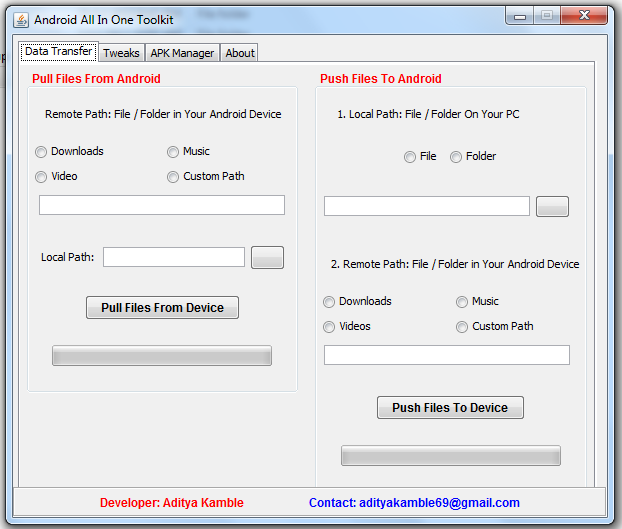
I Made This tool for making workflow more easier for stuff like transfering data from pc to phone and phone to pc . Rather than connecting mass storage via USB you can transfer data using this tool via adb. No need of any command just use this tool for stuff like

Features: 
1. Fast Data Transfer Using adb ( Instead Of SD Card Mounting )
2. Tweaks for Android
3. Build Prop Editor
4. Android APK Manager

Requirements:
1. Android Device Connected To PC in Debugging Mode Enabled
2. USB Drivers Should Be Installed

User Manual :

1. Fast Data Transfer Using adb ( Instead Of SD Card Mounting ):
We used to transfer our data in mobile phone by connecting SD Card to pc but As per my experience it takes much time to connect for bulky SD Cards . So By using this feature You can pull data from device or push data from device
Pulling Data From Phone :
Just select the folder of SD card from which you want to pull data Viz. download , music ,videos I Made ready made option for that You can even set custom folder by giving path in that field like : /sdcard/Documents/
Pushing Data To phone:
In case you want to transfer a file to phone Browse that file and select the destination folder of your SD Card viz. download , music ,video or even custom path

2. Tweaks :
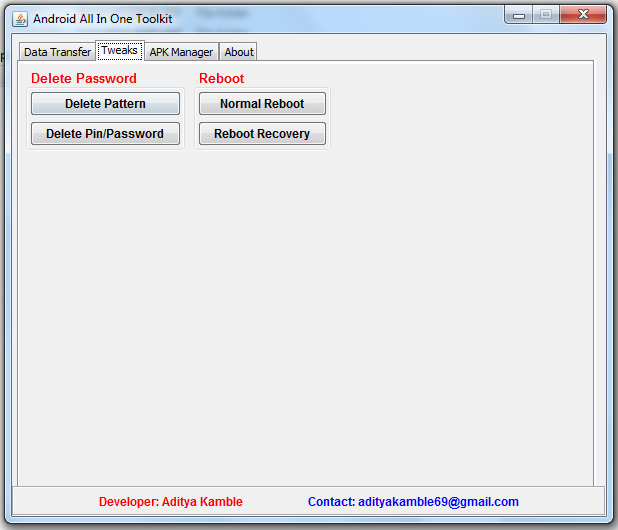
Most android users love android tweaks I made some tweaks for android like Unlock Pattern And Unlock Pin/Password On A Single Click ( *ROOT REQUIRED* ) . More Tweaks will be adding soon as per suggestions and requests

3. Build Prop Editor :
You can modify build properties directly using this application . ( * ROOT REQUIRED* ). This is risky part So Carefully modify build properties.

4. APK Manager:
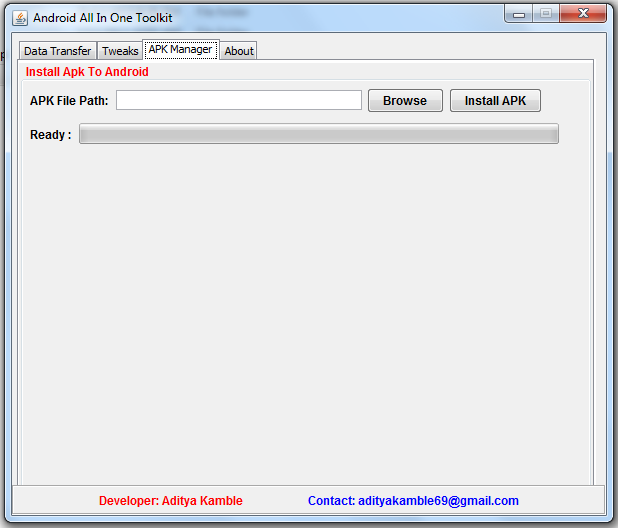
Many people takes backup of their android apk apps. So when you havebackup and want to install to phone directly , use this feature. Browse the apk file and click on install Apk wait for progress bar to complete installation . & Yap.. App is installed.


Screenshots : 

1. Data Transfer


2. Tweaks


3. APK Manager


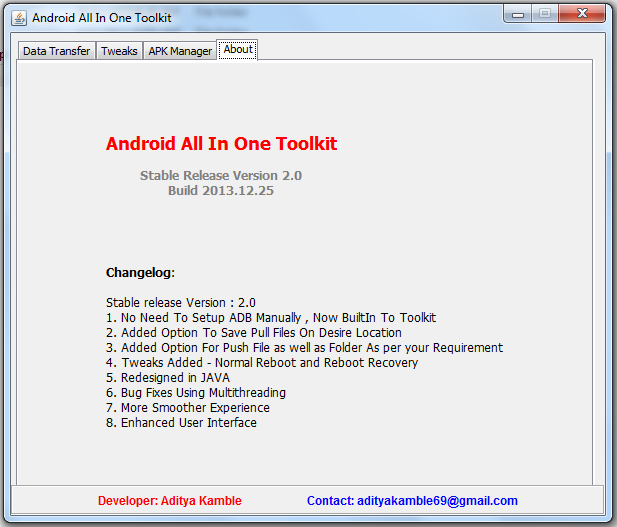
5. About App


Tuesday, 18 February 2014

samsung galaxy s4 i9500 unlocked

Samsung Galaxy s4 I9500 unlocked with the help of z3x here the screenshot

Procedure :

1st u have to root your mobile here the procedure for 4.3 root

Step-1: Download CF-Auto-Root file for Galaxy S4 to computer

Download links
For GT-I9500-http://download.chainfire.eu/326/CF-Root/CF-Auto-Root/CF-Auto-Root-ja3g-ja3gxx-gti9500.zip
For GT-I9505- http://download.chainfire.eu/316/CF-Root/CF-Auto-Root/CF-Auto-Root-jflte-jfltexx-gti9505.zip

Step-2: Extract the downloaded root zip using Winzip, 7zip, winrar or any other extracting tool to get a file with .tar.md5 extension

CF-Auto-Root-ja3g-ja3gxx-gti9500.tar.md5

CF-Auto-Root-jflte-jfltexx-gti9505.tar.md5


 Step-3: Download odin3 v3.07 Extract the Odin zip to get Odin3 v3.07.exe file

Step-4: Switch off Galaxy S4 and wait for five to six seconds for vibration to confirm complete power off


Step-5: Place the phone in Download Mode by pressing and holding Volume Down, Home and Power buttons together until the construction Android robot icon with a warning triangle appears on the phone's screen. Then press the Volume Up button to enter Download Mode


Step-6: Run Odin3 v3.07.exe as Administrator 


Step-7: Connect the phone to the computer using USB cable while it is in Download Mode. Wait for some time until Odin detects the device. When the phone is connected successfully, an Added message will appear under Odin message box. Additionally, the ID: COM box in Odin will turn blue with the COM port number indicating successful connection 


Note: If the Added message does not appear, then try another USB port, try the one located at the back side of the computer. In case Odin still fails to recognise the device then reinstall USB driver. 


Step-8: In Odin, click the PDA button and select CF-Auto-Root-ja3g-ja3gxx-gti9500.tar.md5 or CF-Auto-Root-jflte-jfltexx-gti9505.tar.md5 file according to the variants


Step-9: Ensure Auto-Reboot and F.Reset Time checkboxes are selected in Odin


Step-10: Click the Start button in Odin. The installation process should begin now and would take few minutes to complete


Step-11: When the installation process is completed, the phone will restart and soon a PASS message with a green background in the extreme left box at the very top of Odin. Once the home screen appears, unplug the USB cable from the phone to disconnect it from computer


Samsung Galaxy S4 I9500/I9505 running Android 4.3 should now be rooted successfully. You can now install any app that requires root permission. To verify the root method is installed and working properly, install Root Checker app from Google Play Sore.

Tuesday, 11 February 2014

volcono tool2.5.2


World's 1st SPD 6531 Dual Flash ic Supported
World's 1st SPD 6531 Dual Flash ic Read Flash Supported
World's 1st SPD 6531 Dual Flash ic Write Flash Supported
World's 1st SPD 6531 Dual Flash ic Format Supported
Must use 460800 BaudRate Speed !!
http://www.mediafire.com/download/2a5mnnq4rund8ej/VolcanoTool_v2.5.2.rar

Saturday, 8 February 2014

unlock android pattern lock screen without root

Unlock Android Pattern Lock Screen without root

Here comes two methods for unlocking your Android pattern Lock Screen when you forget the pattern. It is quite common among the users that they forget the new patterns that they just created and even the passwords they set for their own systems. But these steps can work on any mobiles for unlocking their Android pattern Lock Screens. The method used to hack into the pattern Lock Screen is using the ADB – Android Debug Bridge- a versatile command line tool that lets communicate with an emulator instance or connected Android powered device. We communicate with the Android enabled devices with the Computer using the command prompt where we access the Android mobiles with the codes.
Android
Just test with these steps to unlock your Android mobiles. Though this step assists you in unlocking the pattern Lock Screen, please remember that this step even facilitates the third user to unlock and gain access to your mobile. So be cautious with your mobile and always keep it handy and never give them to others believing that they could not be able to unlock it.

Set up USB Debugging in your mobile

This unlocking procedure is quite simple which works on MAC, Linux and PC. Before entering into the steps to unlock pattern Lock Screen ensure that the USB Debug is enabled. In order to enable USB Debug Enabled, Go to Settings à Application à Development à USB Debugging. This works on every Android Device, Just switch on your Android mobile and you could see the Pattern Lock Screen if it was previously enabled. Here you could unlock your mobile only if you know the pattern that you had set it earlier. Other patterns do not work anyhow. So to hack this and enter into the applications, follow the below steps.
Pattern Lock
Here comes the step involved in unlocking your pattern Lock Screen.

1)      Connect your Android mobile to the computer using the data cable.

2)      Now you could provide commands to your Android mobile through your computer.

3)      Click on the Start button on your Computer, type cmd which means “ Command Prompt”

4)      This opens a Command Prompt window, there you type adb shell and click enter.

5)      Then type in rm /data/system/gesture.key and hit enter.

6)      Now it should be good.

Android Mobile Pattern Unlocks

What you need to do is restart your device. It does not mean that your phone is to be unlocked before it should be switched off. Just use the power button to turn off your phone. Now restart or reboot your phone. Now unplug the data cable that is still attached with your mobile phone. Now try to unlock your mobile using any of the patterns. All the patterns work to unlock your phone. So your mobile is not restricted to the only pattern that you had set already.

How to enable pattern again

You may be thinking now that the pattern is broken now, you could be able to set it again as if you have done nothing to your mobile. Just go to Passwordà security àScreen Lock àPattern and draw a pattern as nothing has ever happened before, continue and draw it again to confirm it. Now the pattern is set again and the mobile stick only with the pattern that you have set now.

This method is only for unlocking your mobile when the pattern is forgot and not for hacking others mobile. Hope everyone uses this method for their own mobile in a positive way.

Alternative method to break the pattern Lock Screen

For few mobiles the previous method does not work, so they need to go for an alternative method to unlock their mobile. Here comes the alternative step to break the pattern Lock screen.

1)      Have USB Debugging enabled again as we saw it earlier. This can be done by Go to Settings à Application à Development à USB Debugging

2)      Plug your data cable back into your phone. This links your phone with your mobile.’

3)      Click on the Start button on your Computer, type cmd which means “ Command Prompt”

4)      This opens a Command Prompt window, there you type adb shell and click enter

5)      Then type cd /data/data/com.android .providers.settings/databases hit enter

6)      Then type sqlite3 settings.db hit enter

7)      Type update system set value=0 where name=’Iock_pattern_autolock’;  hit enter

8)      Type update system set value=0 where name=’lockscreen.lockedoutpermanently’;

9)      Then finally type .Quit
        Pattern_CMD
The coding to be used in CMD prompt

adb shell

cd /data/data/com.android .providers.settings/databases

sqlite3 settings.db

update system set value=0 where name=’Iock_pattern_autolock’;

update system set value=0 where name=’lockscreen.lockedoutpermanently’;

Quit

What you need to do is restart your device. It does not mean that your phone is to be unlocked before it should be switched off. Just use the power button to turn off your phone. Now restart or reboot your phone. Now unplug the data cable that is still attached with your mobile phone. Now try to unlock your mobile using any of the patterns.

If any of the method does not work go with the other method which works with it. Hope you will be happy with this update. Please stay connected for more important updates.